
Check the base path first when CSS and JS break after deploy
A deployed page can look completely broken even when the HTML itself is fine. The layout disappears, scripts stop running, icons go missing, and the first instinct is often to blame the framework or the build output.
In many real cases, the problem is simpler and more mechanical than that. The page is loading from one path, but the generated CSS and JS are being requested from another.
This post is about checking base path and asset routing before guessing deeper causes. The goal is to stop treating broken styles and scripts as a mysterious app failure when they are often just a path mismatch.
1. The common mistake is treating missing CSS or JS as a rendering bug first
When a deployed page loses styling or behavior, people often jump straight into framework settings, hydration issues, or broken components. That is understandable, but it is usually too deep for the first check.
If the generated asset files are being requested from the wrong location, the page will look broken no matter how correct the app code is. You do not have a rendering problem yet. You have a routing problem.
2. The most important section is understanding that page path and asset path can disagree
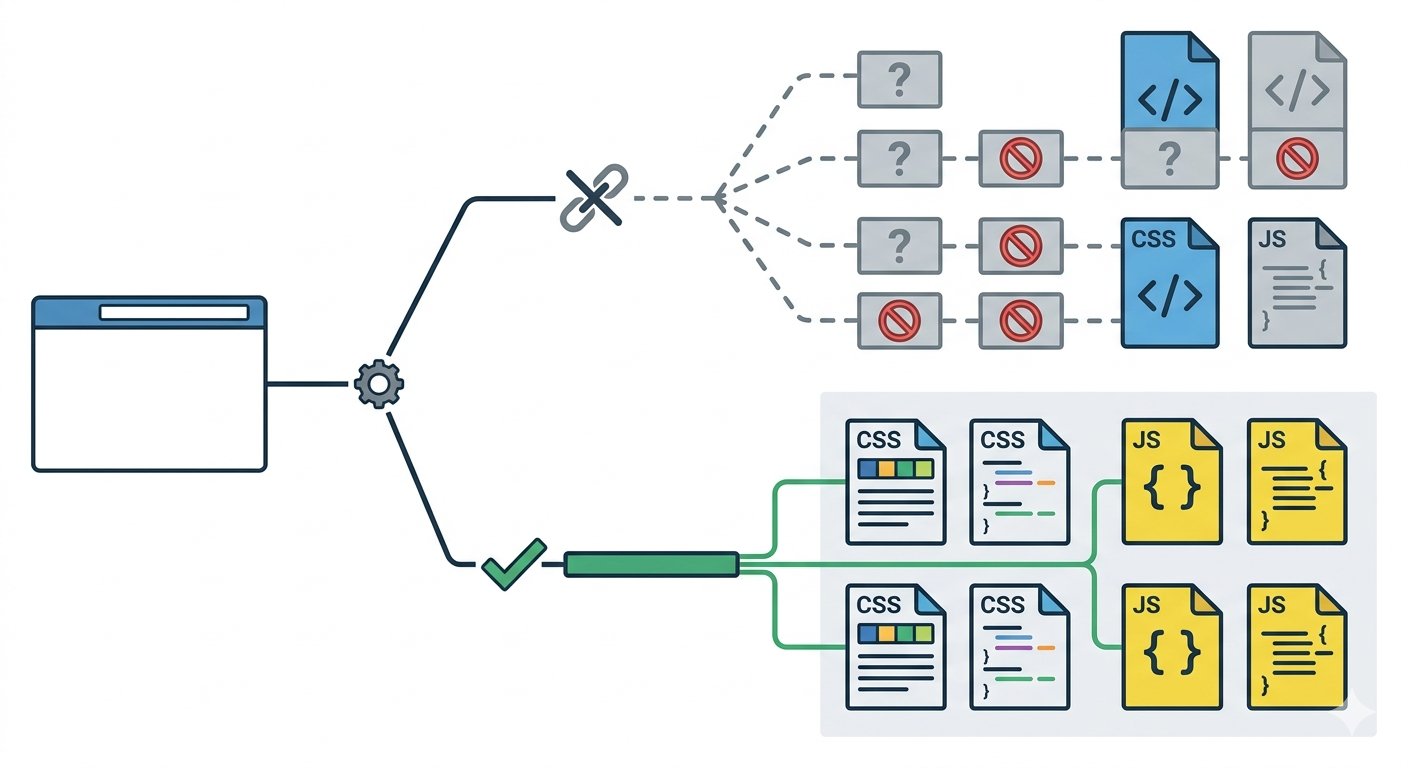
This is the core diagnostic shift. A page can return 200 and still be operationally broken because the CSS and JS requests are going somewhere else.
That usually happens when the deploy path, framework base path, generated asset path, and public host assumption are not aligned. The page itself may live under a subpath, while assets are still being requested from the root. Or the opposite happens: the app expects a subpath, but the deployed host serves it from the root.
This is why the failure looks stranger than it really is. The first document opens, so the deploy appears healthy. But once the browser asks for styles, scripts, fonts, or image bundles, the mismatch shows up. The result is a page that feels half alive: content appears, but layout collapses and behavior disappears.
People misread this because they focus on what the page looks like instead of what the network is asking for. The browser is not telling you “the app is broken.” It is telling you “I asked for assets in the wrong place.” Those are very different failures, and they lead to very different fixes.
Once you see that distinction, the workflow gets much calmer. Instead of debugging components, you compare four things: the public URL of the page, the actual requested asset path, the configured base path, and the path layout produced by the deploy. Most of the time, the mismatch becomes visible there.
3. Check these things before touching the app code
- Does the page load from the root path or a subpath?
- Do CSS and JS files request from the same path family as the page?
- Does the framework config expect a base path that the host is not serving?
- Did the deploy move assets under a prefixed folder while links still point to root?
4. One real failure pattern explains most of the confusion
Imagine a site deployed under /docs/. The HTML page opens correctly at that subpath, but asset links still point to /assets/... instead of /docs/assets/.... To the operator, the page looks “partly broken.” To the browser, the problem is precise: the page path and asset path do not agree.
The reverse can happen too. The build was generated for a subpath, but the live host serves the site from the root. Then every asset request carries a prefix that the host does not recognize.
5. Use one verification order every time
Do not start with code edits. Start with the public page URL, then inspect one CSS request and one JS request, then compare them against the configured base path and the actual deploy folder layout. If those four do not line up, the rest of the debugging should wait.
- open the broken page
- inspect one CSS request and one JS request
- compare requested paths against the live URL structure
- compare both against the configured base path
- only then decide whether the fix belongs in config, deploy path, or generated links
What to do first
Open one broken page and write down three strings side by side: the live page URL, one CSS request URL, and one JS request URL. If those paths do not belong to the same route family, treat it as a base-path or asset-routing problem before touching anything deeper.